VibesConnect.
More room to
make music.
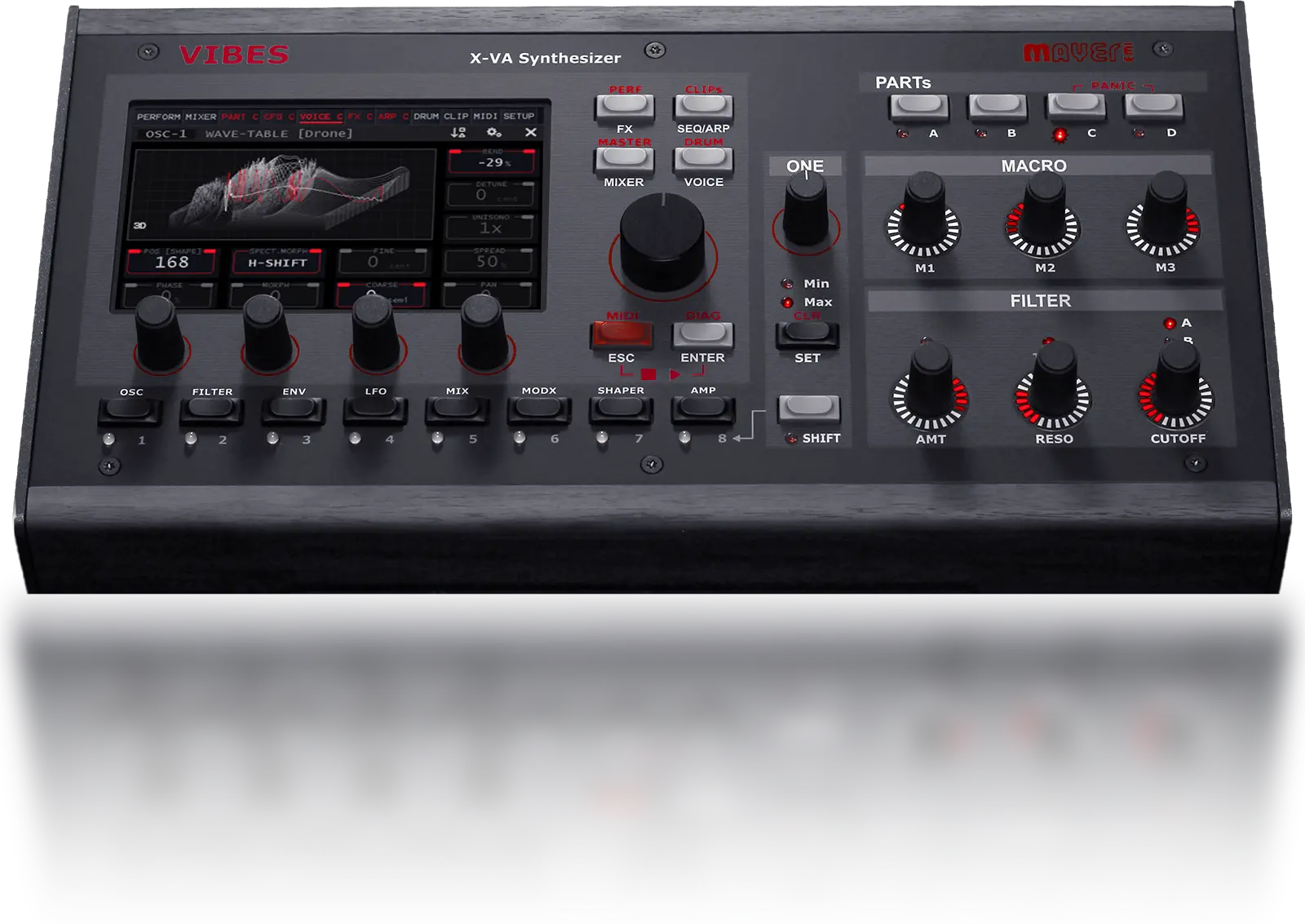
Your Vibes MD850, with a bigger workspace.
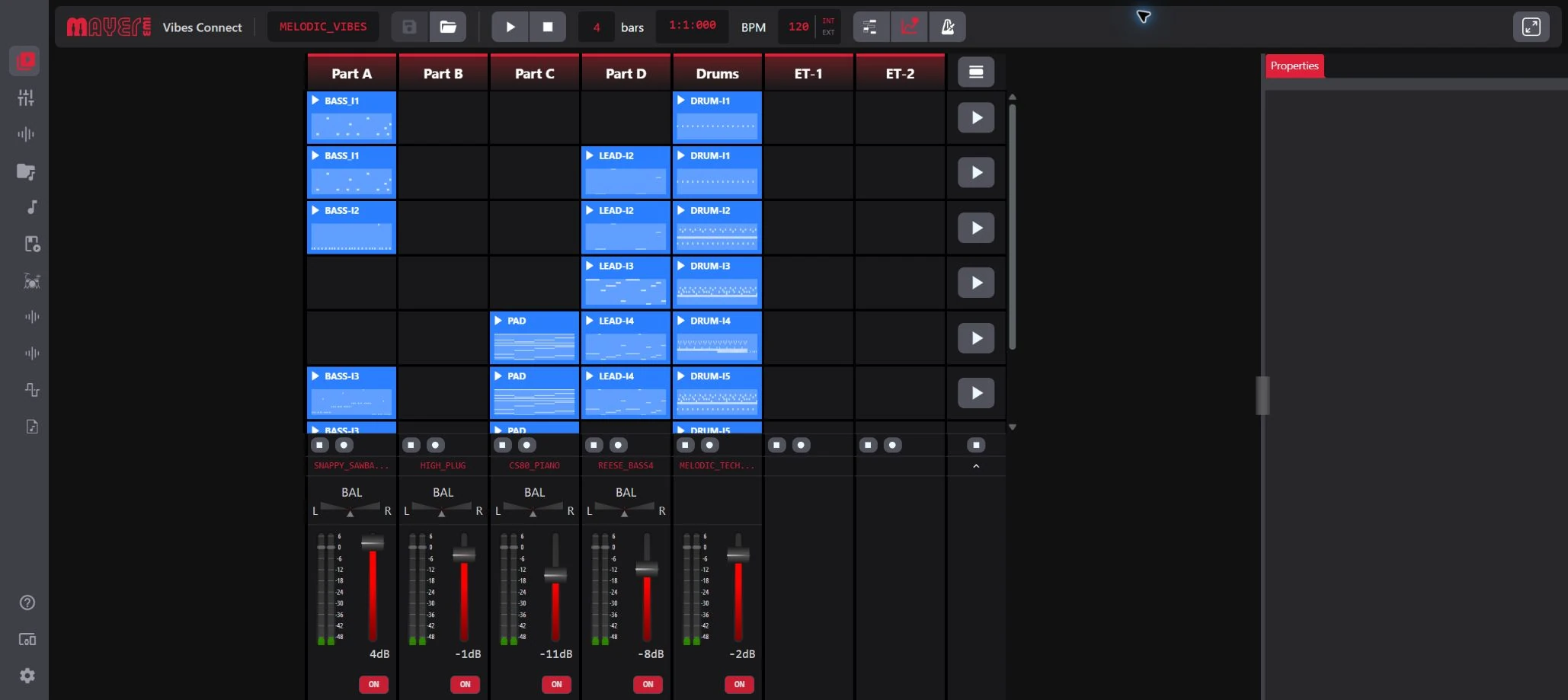
Arrange clips, edit notes, balance your mix and find the right sound in your browser. VibesConnect works with the hardware synth on your network, bringing its performance and sound-management tools onto one screen.
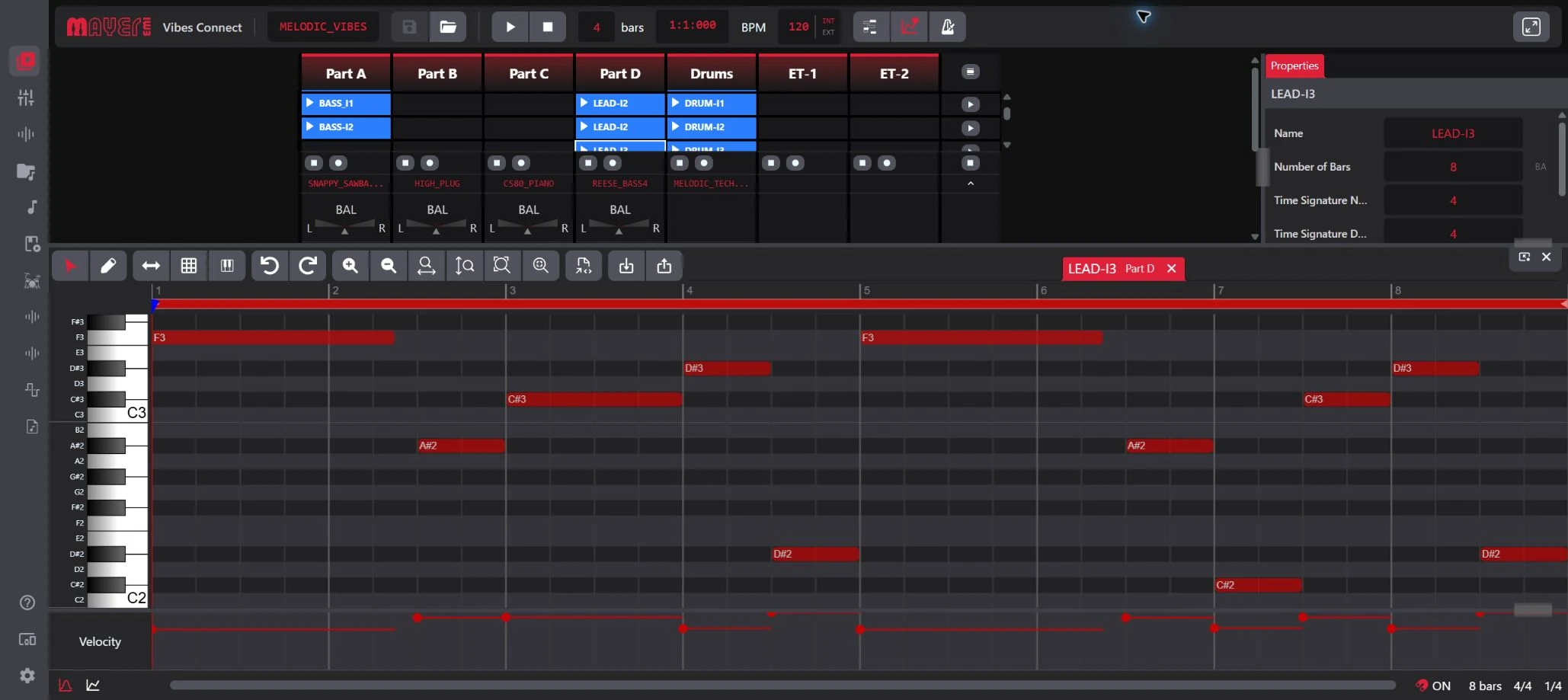
The Clip Launcher with a loaded performance. View full screenshot
Screenshots show XVAOS 5.0 beta. The interface may differ from your installed version; visible libraries include user-added content.
Build the phrase.
See the performance.
Put the bass, chords and drums into clips. Open a clip to work on its notes and velocity in the piano roll, with the rest of the performance still in view.
Adjust the length, timing and behaviour of a clip to shape what happens next. MIDI import and export let you work with sequences you already have.
Notes and velocity for a lead clip, with the performance above. View full screenshot
Edit the detail
Use the grid, snap, zoom and note-length controls to place a phrase. Adjust velocity to change its emphasis.
Shape the sequence
Clip properties bring bar count, time signature, swing, repeat and next-action settings into one view.
Capture movement
Record Automation and the editor’s automation area bring parameter movement into the performance workflow.
Find the sound.
Put it in the part.
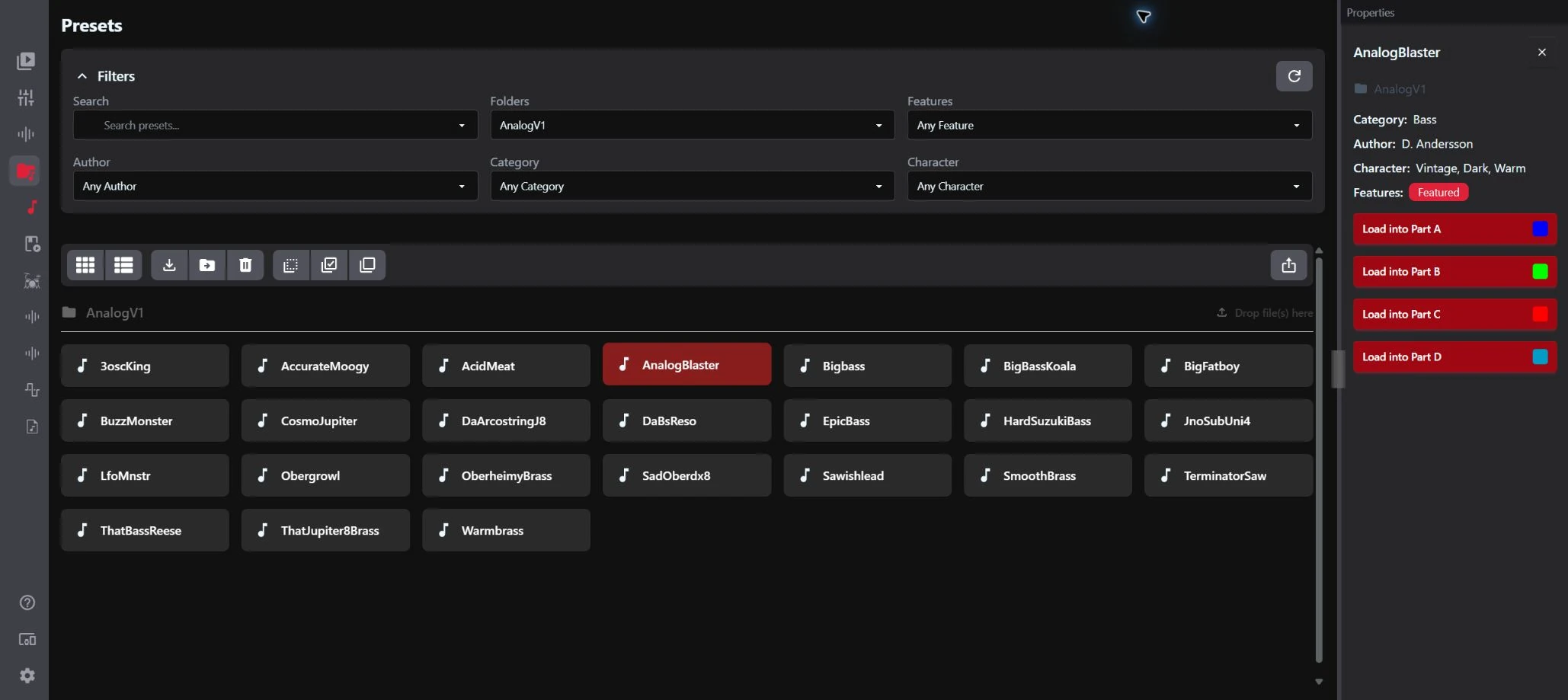
Search your presets by name or filter by bank, author, category and character. Select a sound, check its details and load it directly into Part A, B, C or D.
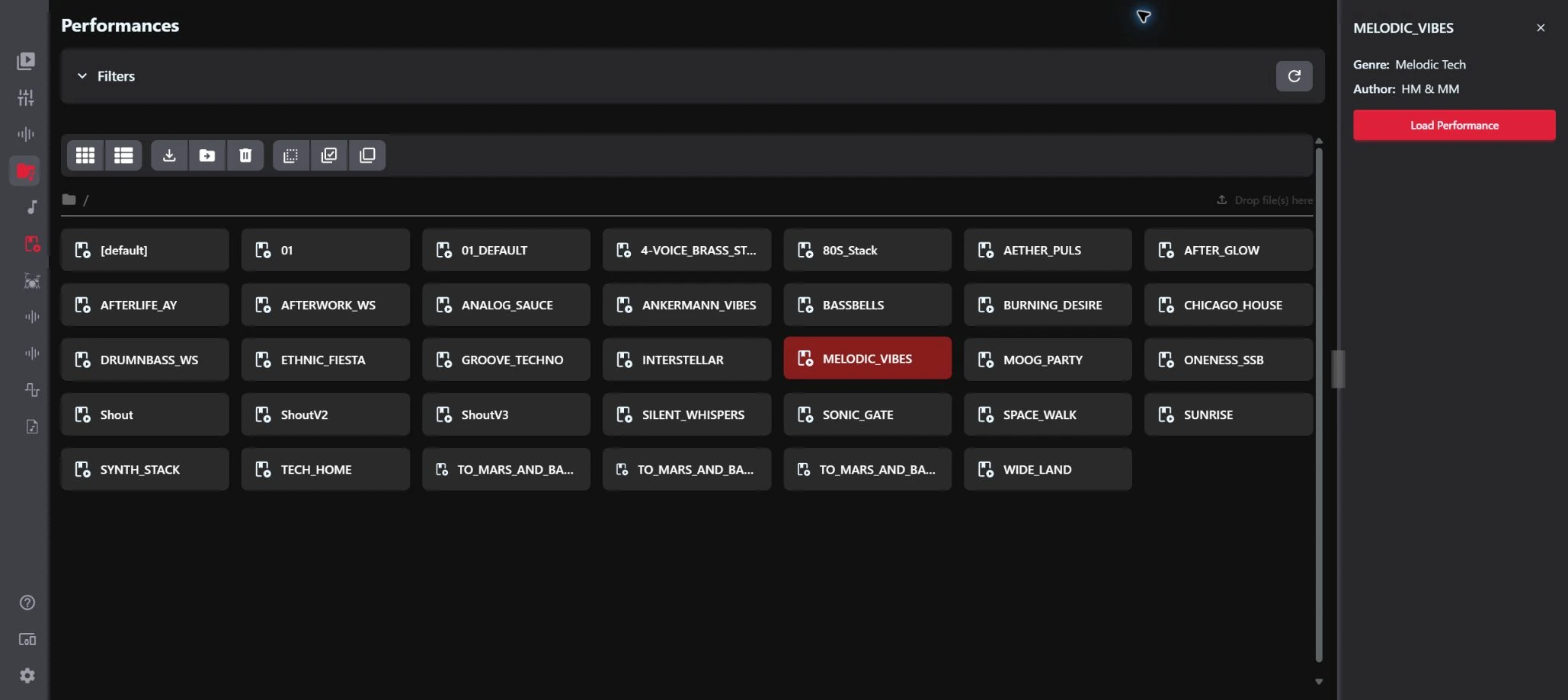
Keep complete performances, wavetables, samples, drum kits and MIDI files organised alongside your presets.
Preset filters and direct part assignment. View full screenshot
Hear the balance.
See what to change.
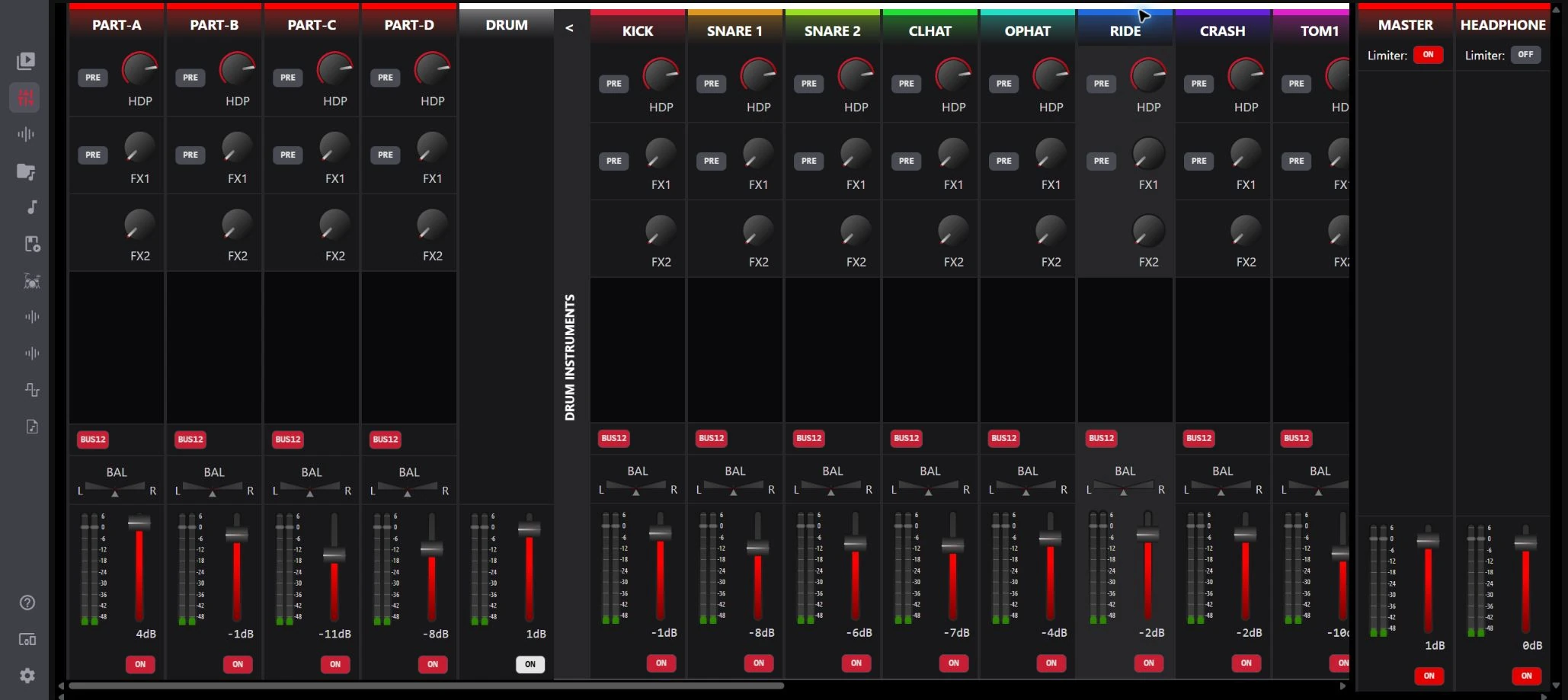
Bring the synth parts, drums, inputs and effects into a shared mixer view. Adjust levels, balance and sends while keeping the master and headphone channels in sight.
Expand the drum channels to work on individual instruments. Give the kick its place, tuck in a hi-hat or change how much of a sound reaches the effects.
Expanded drum channels. Additional channels are available by scrolling in VibesConnect. View full screenshot
Make room for
your own sounds.
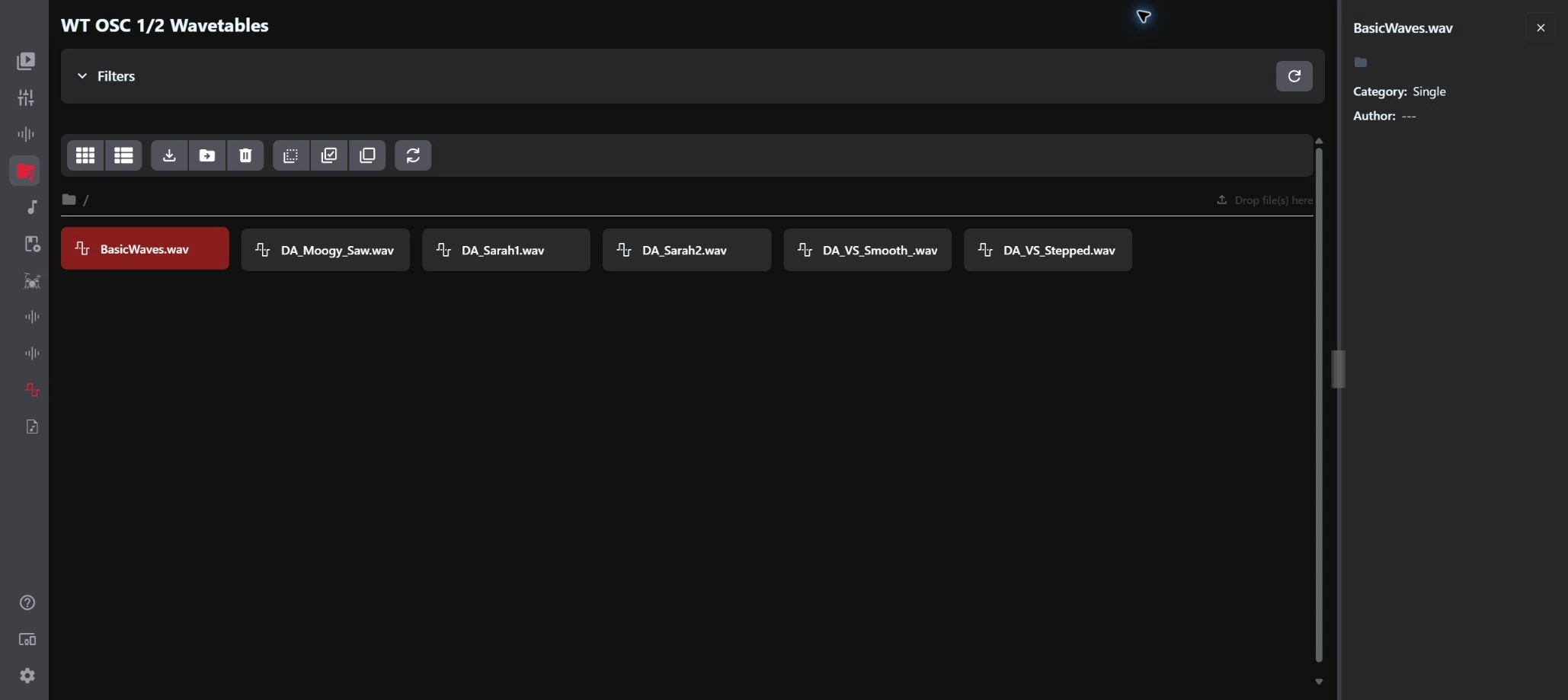
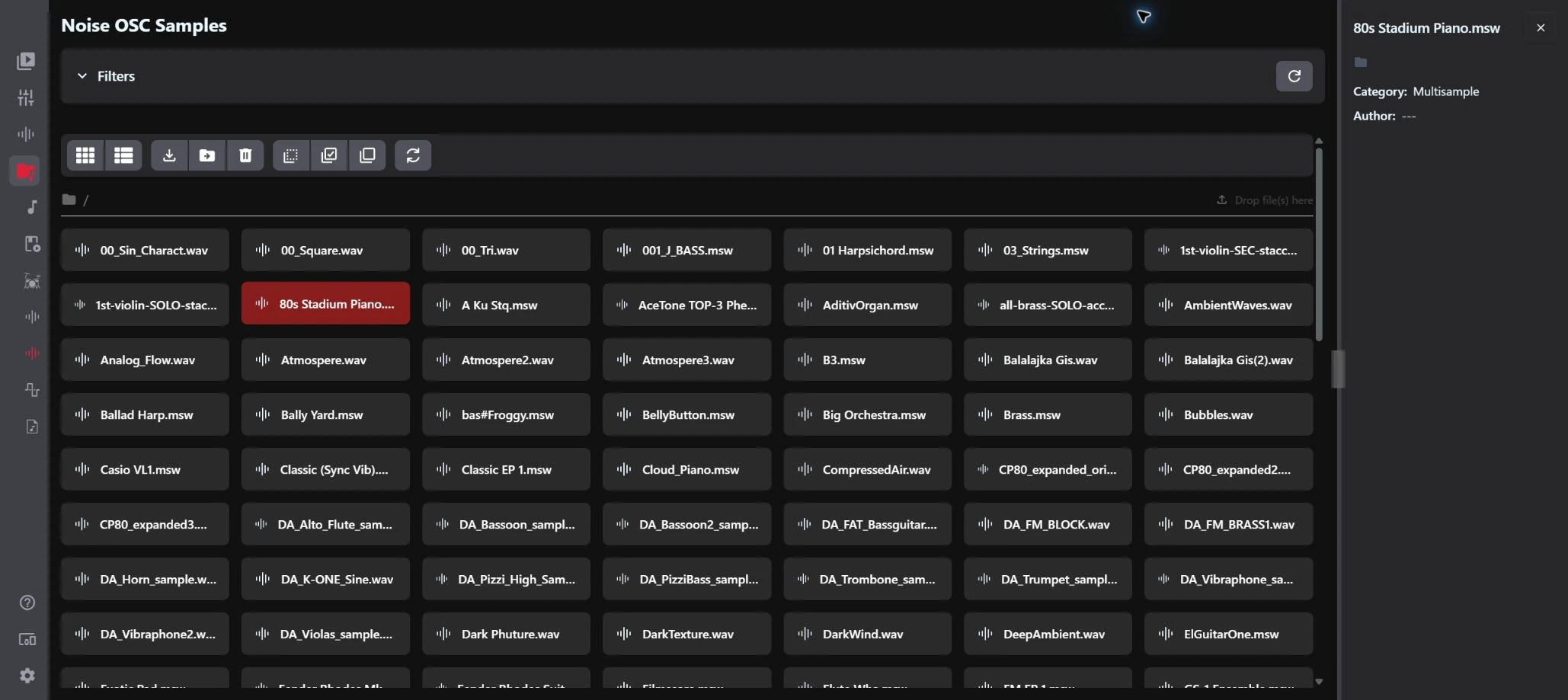
Bring your wavetable and sample collection into the instrument. VibesConnect has separate resource views for wavetable files, sample-oscillator material, drum samples and MIDI files.
The Multisample Editor provides mapping and import tools for SFZ, MSW and WAV. SFZ instruments belong to this sample workflow; they are different from wavetable files.
Use compatible files and check the current documentation for format support. Importing a wavetable does not import a complete software-synth preset.
New sounds.
Help when you need it.
Keep your SoundPacks in view
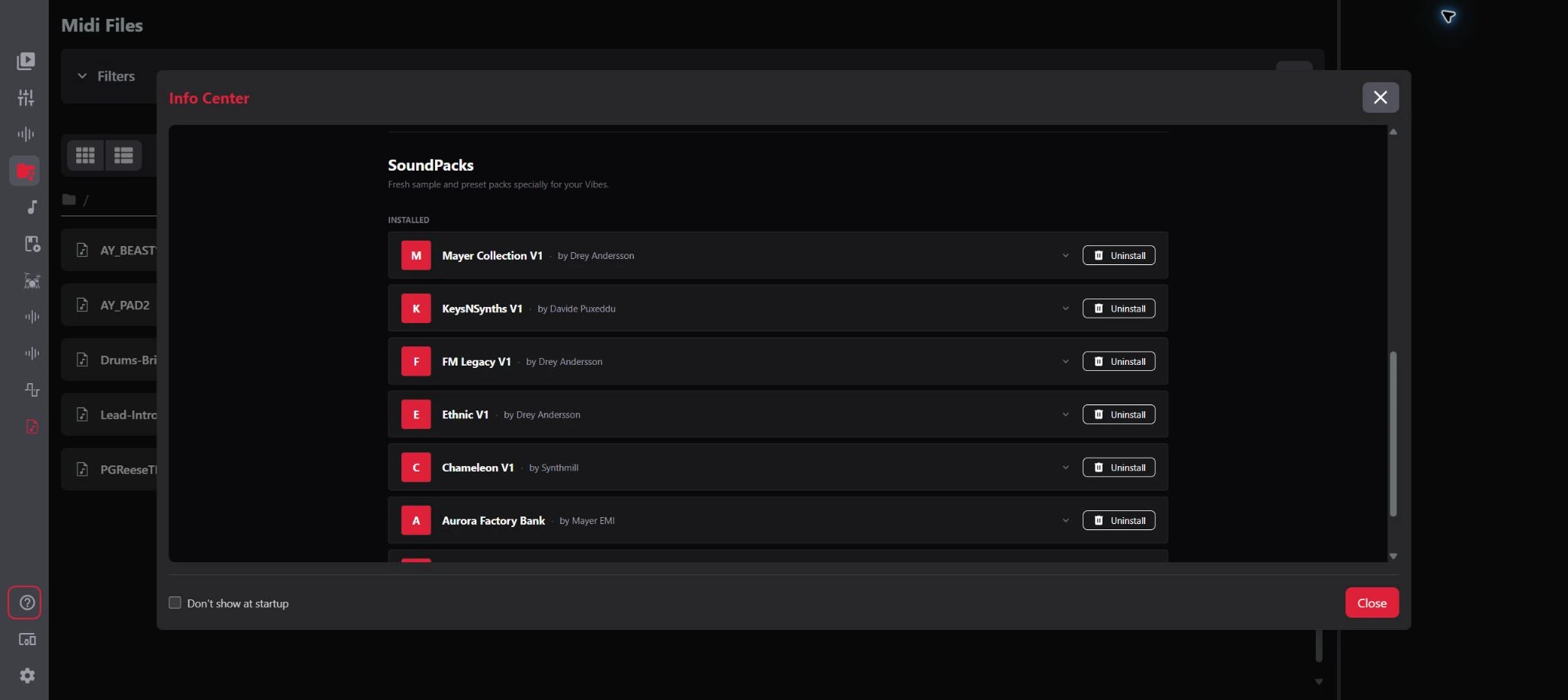
The Info Center lists your installed SoundPacks with their authors and descriptions. Browse new content and follow the installation instructions to bring a pack onto the instrument.
Installed SoundPacks, not a download in progress. View full screenshot
Find the explanation nearby
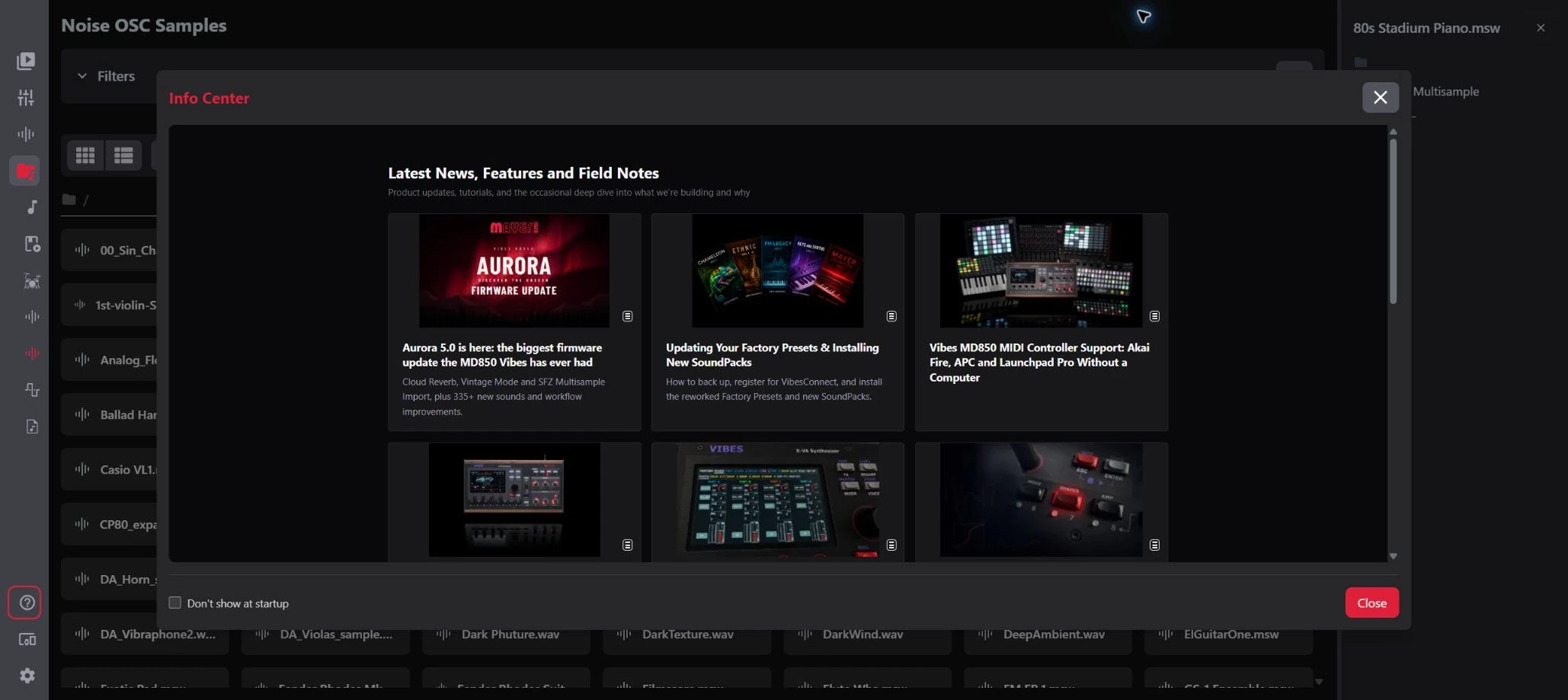
Tutorials, product articles and news sit in the same interface as your sounds. Read about a feature, then return to the performance you are working on.
Tutorials and news in the Info Center. View full screenshot
SoundPack installation and firmware updates are separate processes. Follow the instructions on the instrument, including any registration or restart steps.
Open your browser.
Connect to your Vibes.
1. Join the same network
Connect your Vibes MD850 to your router over LAN or Wi-Fi. Connect the computer you will use to the same network.
2. Find the instrument’s address
On the Vibes touchscreen, open SETUP → DIAG and find its IP address.
3. Open it in your browser
Enter that address in the browser’s address bar and sign in when prompted. VibesConnect opens the workspace for your instrument.
A few practical details.
Is VibesConnect a software synthesizer?
VibesConnect is the browser workspace for the Vibes MD850 hardware. It gives you a larger view for editing clips, mixing and managing sounds; the instrument remains the sound source.
Where do I open VibesConnect?
Open your own instrument’s IP address in a browser while both devices are on the same network. The address is shown under SETUP → DIAG on Vibes.
What can I organise?
Presets, performances, wavetables, sample-oscillator resources, drum kits, drum samples and MIDI files have dedicated views. The preset browser also lets you load a sound into one of the four synth parts.
Are all sounds shown in the screenshots included?
The screenshots show a working instrument containing factory and user-added resources. They illustrate the workflow, not a guaranteed list of included libraries.
How do I install a SoundPack?
Follow the pack’s instructions in the Info Center. The process can include registration, downloading, installation and confirmation on the Vibes, followed by a restart. Firmware updates are handled separately.
A bigger view.
The same hands-on instrument.
Prepare a performance in VibesConnect. Shape the sound on Vibes MD850. The browser workspace and the hardware controls give you different ways into the same instrument.