
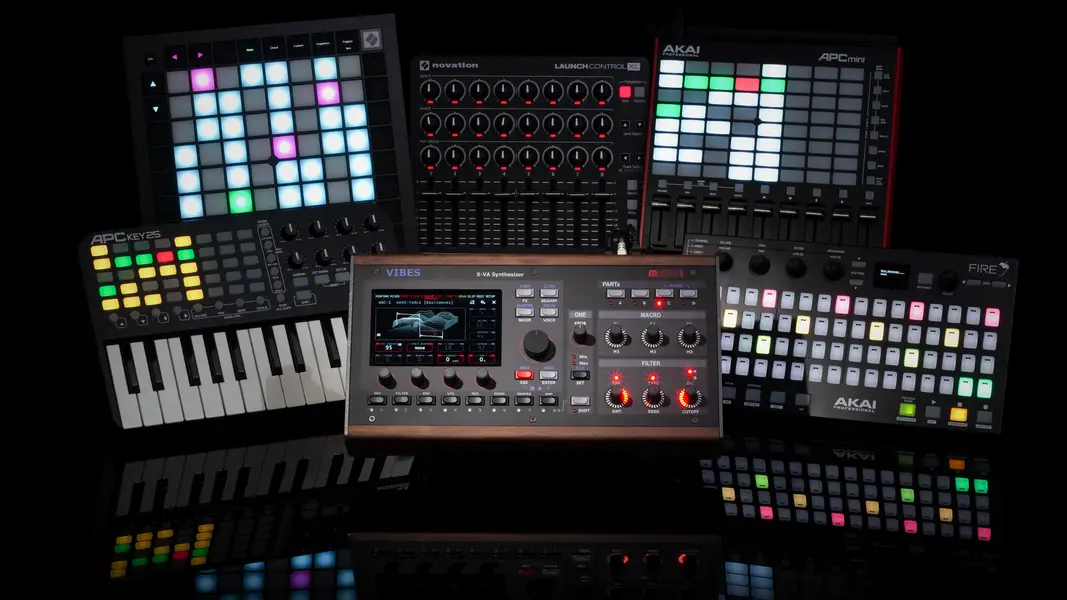
The Vibes MD850 works with any class-compliant USB MIDI controller, with no computer and no drivers. Plug the controller into one of the MD850’s USB-A host ports and bind its knobs and faders with MIDI Teach-In, the MD850’s version of MIDI Learn. Six controllers get Enhanced Integration and become dedicated surfaces for the clip launcher and drum sequencer: the Akai APC mini, APC mini MK2, APC Key25, APC Key25 MK2, Novation Launchpad Pro and Akai Fire.
A good MIDI controller puts faders, pads and knobs under your hands, so you can play the Vibes MD850 without reaching for the touchscreen. The MD850 supports controllers in two ways: Teach-In, which works with almost any class-compliant controller, and a deeper integration that turns six specific controllers into dedicated surfaces for the Vibes.
This article explains both, so you can choose a controller or get more out of the one you already own.
Every class-compliant MIDI controller works with the Vibes MD850 without drivers or setup files. Plug it in, and you can bind any knob, fader or pad to a parameter within seconds. We call this MIDI Teach-In.
For a select group of controllers, the Vibes MD850’s Aurora firmware goes further. Instead of mapping single knobs to single parameters, it recognizes the controller and turns its pads, faders and buttons into a remote control surface with dedicated modes for clip launching, drum sequencing, mixing and more. We call this Enhanced Integration.
You don’t switch between the two. The Vibes MD850 detects your controller and picks the right mode by itself. A supported controller from the list below runs in Enhanced Integration mode as soon as you plug it in. Any other class-compliant controller runs via Teach-In. On an Enhanced Integration controller, knobs the integration doesn’t use stay free, and you can teach them in to any parameter.
Teach-In is the quickest way to connect any class-compliant MIDI controller to the Vibes MD850.
You don’t need any menus or manual CC assignment. Teach-In works with almost any MIDI controller, so it’s a good starting point whatever hardware you already have.
For six popular controllers, the Aurora firmware includes a native integration. The MD850 recognizes them automatically and gives them dedicated control modes for specific parts of its workflow.
The following controllers are currently supported:
| Controller | Clip Launcher | Drum Sequencer | Scale/Chord Keyboard | Drum Computer | Teach-In Knobs/Sliders | Physical Keyboard |
|---|---|---|---|---|---|---|
| Akai APC mini | ✅ | – | – | – | ✅ | – |
| Akai APC mini MK2 | ✅ | – | – | – | ✅ | – |
| Akai APC Key25 | ✅ | – | – | – | ✅ | ✅ |
| Akai APC Key25 MK2 | ✅ | – | – | – | ✅ | ✅ |
| Novation Launchpad Pro | ✅ | ✅ | – | – | – | – |
| Akai Fire | ✅ | ✅ | ✅ | ✅ | ✅ | – |
(✅ = supported, – = not applicable/supported for this controller)
Note: Exact feature support can change between Aurora firmware versions and depends on each controller’s hardware (e.g. velocity-sensitive pads, number of knobs).
Start and stop clips and scenes directly from the controller’s pad grid, arm tracks for recording, and trigger clip recording without touching the Vibes touchscreen.
Set or remove triggers on the step grid, set the step length and add per-step expressions such as accent, pan, delay, chance and timing (micro-timing/”times”). You can also mute individual instruments from the controller.
This mode turns the controller’s pad grid into a musical keyboard. Play in a selected scale so every pad is in key, or switch to chord mode to trigger a full chord with a single pad.
Play the Vibes’ drum instruments from the controller’s pads. On controllers with velocity-sensitive pads, the MD850 also picks up how hard you hit, so harder hits play louder.
On controllers with physical knobs, you can still teach those knobs in to any parameter while the controller runs in Enhanced Integration mode. Switch the controller into its knob mode and use the Teach-In steps described above.
Some controllers have a built-in keyboard. On the Vibes MD850 you can switch this keyboard between the individual tracks and play any instrument on real keys.
All six controllers are usually bought to control software on a computer. Akai built the Fire as a dedicated controller for FL Studio, and the APC and Launchpad lines are best known for clip launching in a DAW. On the Vibes MD850 they need no computer at all: the controller plugs into one of the MD850’s three USB-A host ports, and the clip launcher, sequencer and sounds it controls all run inside the MD850. The MD850 also powers the controller over USB, so there’s no extra power supply, and you can connect several controllers at the same time.
Here is what each one becomes:
You don’t need to configure anything. The Vibes MD850 picks the mode based on the controller you plug in. If you already own a class-compliant controller that isn’t on the Enhanced Integration list, Teach-In gets it working in seconds. If you’re buying a new controller and want dedicated modes for clip launching, sequencing and mixing, choose one of the six controllers above.
Both ways work without a computer, directly on the Vibes MD850.
Any class-compliant USB MIDI controller works through MIDI Teach-In, with no drivers and nothing to install. Six controllers also get Enhanced Integration: the Akai APC mini, APC mini MK2, APC Key25, APC Key25 MK2, Novation Launchpad Pro and Akai Fire.
Yes. Plugged into the Vibes MD850, the Akai Fire runs without a computer and without FL Studio. It becomes a clip launcher, drum sequencer, scale/chord keyboard and drum computer for the MD850, and its knobs can still be taught in to any parameter.
Yes. Connected to the Vibes MD850, the APC mini, APC mini MK2, APC Key25 and APC Key25 MK2 work as clip launchers for the MD850, and their faders or knobs can be bound to parameters with Teach-In. On the APC Key25 models, the keyboard plays any of the MD850’s tracks.
Yes. The Vibes MD850 recognizes the Launchpad Pro automatically and turns its pad grid into a clip launcher and a drum sequencer, with per-step accent, pan, delay, chance and timing.
Yes, it works the same way. Press and hold a parameter’s label on the Vibes display for about 2 seconds, then turn a knob or move a fader on your controller. The control is now bound to that parameter’s MIDI CC.
Yes. The Vibes MD850 saves your Teach-In assignments.
Yes. You can connect several MIDI controllers to the Vibes MD850 at the same time.
Yes. The MD850’s USB-A host ports supply power to the connected controller, so it needs no separate power supply.
No. The USB-A ports of the Vibes MD850 are host ports for controllers, keyboards and USB sticks. A computer or DAW connects to the MD850 via DIN MIDI.